How to automate CRM data entry from sales calls
Lightfield
Quick summary
A sales call produces four things a CRM needs: a stage, an amount, a next step, and a set of tasks. In a CRM that depends on typing, a rep enters them afterwards, when there's time. In Lightfield, the call sets them, and you review the changes you choose to review.
Lightfield records external meetings by default
When a CRM depends on reps typing notes after a call, the record holds whatever they remembered or had time for. Lightfield records a meeting on its own when all four of these are true:
- At least one participant is outside your company's domain.
- The meeting is on Zoom, Google Meet, or Microsoft Teams.
- You're the organizer or an invitee.
- No attendee is on a Do Not Track domain.
You can change the default under Settings, Account, Recording.
Setting | What it does |
Record external meetings only | Records meetings that include someone outside the company. |
Record all meetings | Also records internal meetings, with a toggle for internal 1:1s. |
Don’t record | Records nothing unless you invite the notetaker to a specific meeting. |
Any single meeting can override these settings.
The notetaker joins as a visible participant
The notetaker joins as a named participant, and the host admits it from the waiting room. If nobody admits it within about 20 minutes, it leaves. It joins only meetings on the synced calendar, and it doesn't join early.
Everyone in the meeting can see when the notetaker joins. If a call needs extra care around consent, you can set a legal disclaimer as the notetaker's profile image under Settings, Workspace, Meetings. You can also announce the recording at the start or remove the notetaker if someone objects.
Fields update within about ten minutes of the call
Lightfield processes the transcript and recording 5 to 10 minutes after the call ends. The summary, action items, and field updates arrive in that same window.
The agent pulls the stage, amount, next step, and resulting tasks from the conversation. It also fills any other field with AI Fill turned on, whether the field sits on an account, a contact, an opportunity, or a custom object.
You tell the agent what each field should hold with a prompt, such as "What CRM and sales tools does this company currently use? Answer unknown if this hasn't come up." A field like that fills only when the subject comes up on the call.
AI Fill sets how much happens without review
Each field's AI Fill setting has three values:
- Off: the agent leaves the field alone.
- Suggest: the agent proposes a value, and a person applies or dismisses it.
- Auto: the agent fills the field with no review.
On Suggest, the proposed change appears in the Suggested record updates panel on the account, contact, or opportunity, and in the suggestions panel on the home page, with the source meeting shown beside it. Tasks have a separate setting with two values, Auto and Suggested.
The follow-up email waits as a draft
Lightfield writes the follow-up, and a person sends it. A draft you request in chat appears in your connected Gmail or Outlook drafts, or inline in the chat. A draft produced by an Automation (open beta) or a Sequence goes to the For Review queue, with the workspace member named as the sender.
Conversations outside a supported meeting need a manual step
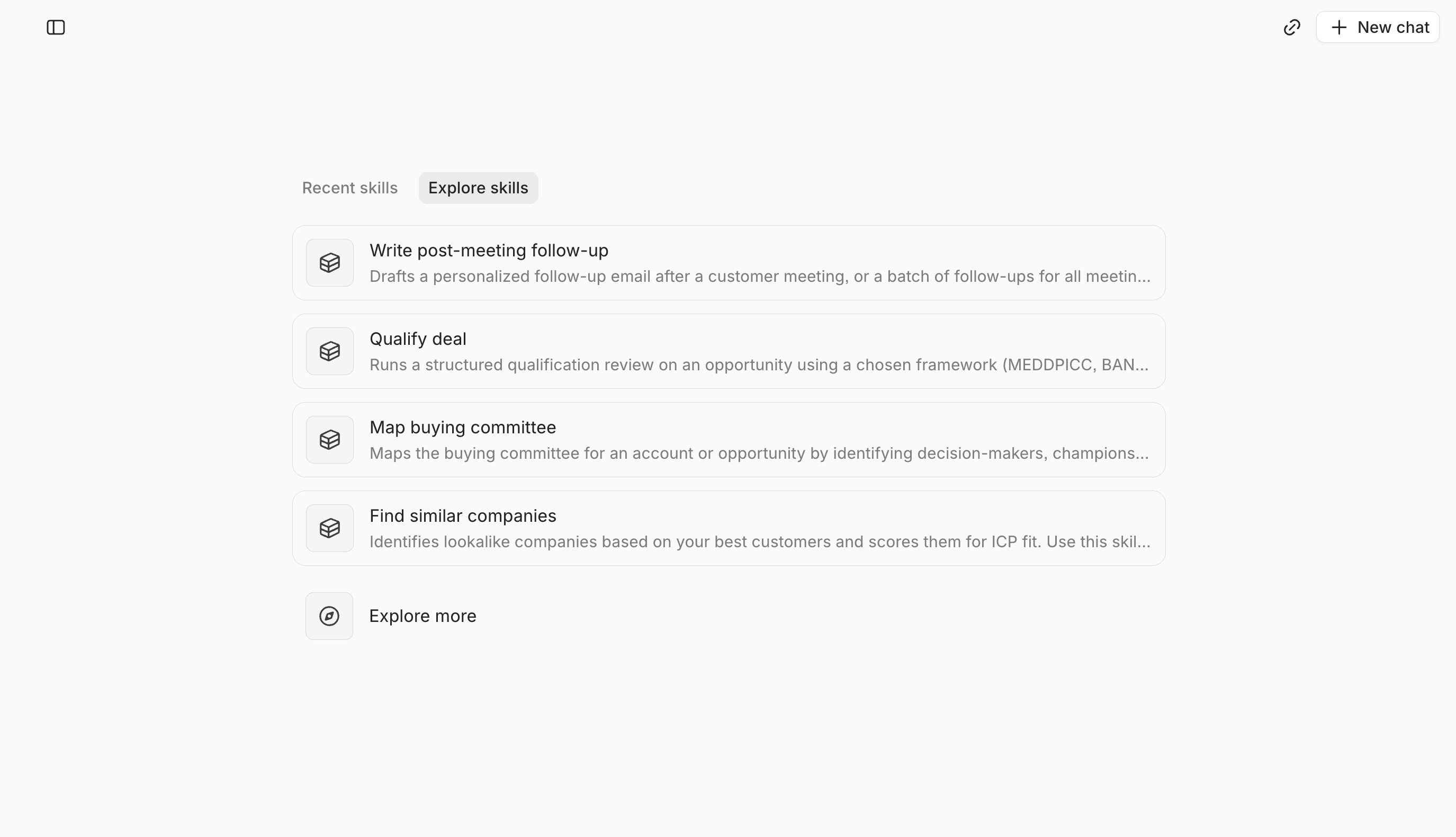
Lightfield records meetings on Zoom, Google Meet, and Microsoft Teams. For a conversation that happened elsewhere, there are two ways to get it into the record:
- Add a note to the account, contact, or opportunity. The agent reads notes when it summarizes or answers questions.
- Attach a transcript or recording to a meeting already on the synced calendar. Ask the agent to "add a transcript to this meeting," then paste the text or a link to the file.
A new meeting can't be created only to hold a transcript, so a conversation with no calendar entry goes in as a note.
Email and Slack write to the same account
Lightfield also captures email from Gmail and Outlook. Connecting a mailbox syncs 30 days of email and calendar history, and a workspace can extend that to two years. Slack channel message sync is included from the Starter plan. LinkedIn sync is in beta on Growth, and it covers DM history only for contacts already enrolled in a LinkedIn Sequence.
See how Lightfield automates CRM data entry
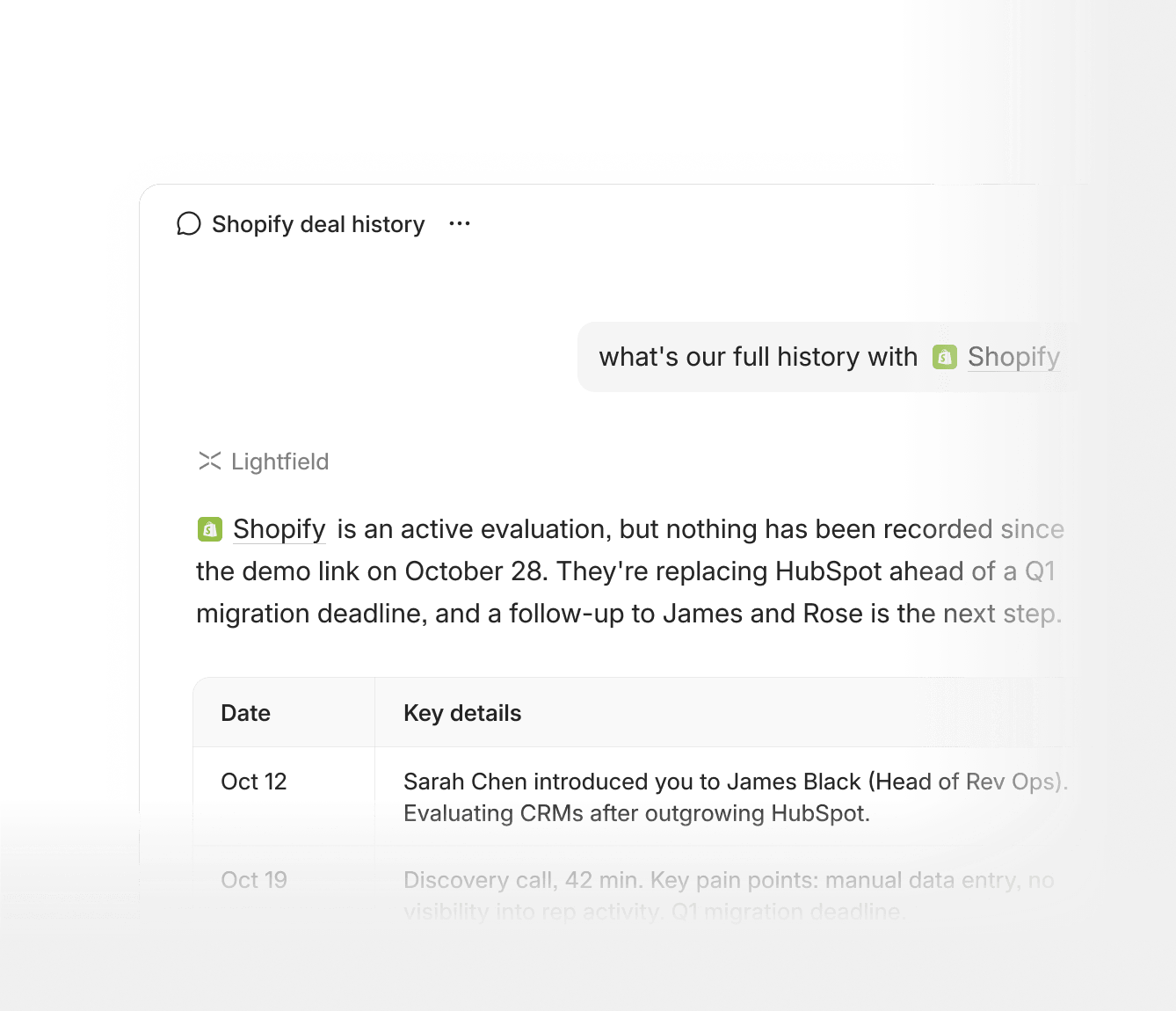
Reps shouldn't have to reconstruct every sales conversation when they return to the CRM. Lightfield pulls details from meetings, email, and Slack into the right fields, so reps spend less time updating records by hand. Your team can review suggested changes or let selected fields update automatically.
Book a demo to see how it works.
Common questions about automating data entry
Does the notetaker record internal meetings?
Not by default. The default setting records only meetings that include someone outside your company. You can switch to recording all meetings, with a separate toggle for internal 1:1s.
Does a rep have to press record?
No, unless the recording setting is Don't record. In that case, the rep invites the notetaker to the specific meeting.
Does it fill custom fields?
Yes. Any field with AI Fill enabled can be populated from the conversation, including fields on custom objects. Each field uses a prompt that tells the agent what to capture.