CRM data cleansing for AI agents: merge, define, then backfill
Lightfield
Quick summary
An agent treats every field as true. Duplicate accounts, empty fields, and a status column that means three things lead it to wrong actions. Cleansing a CRM for agents in Lightfield takes five steps: find duplicates, approve each merge, give each field one meaning, backfill from past emails and meetings, and set how much the agent can change. Every merge waits for your approval.
Why agents need clean data
We think agents can't do reliable work without data they can trust, and when an agent fails, the problem is usually the data it was given. A person works around a messy CRM because they know which fields to ignore. An agent doesn't. An agent reading one of two duplicate accounts sees half the history. An agent reading a status column that means three things can't tell which meaning applies to the deal in front of it.
For how agentic CRMs differ from rep-entered ones, see what an AI CRM is.
Where duplicates come from
Lightfield matches accounts on website domain and contacts on email address. Most duplicates trace back to a record created without that key, or with a different one:
- The same company emails you from two domains.
- Someone created a record by hand before email sync picked up the company.
- A CSV import had no domain or email column.
Clean the CRM in five steps
Do the steps in order, so the backfill runs on accounts that are already merged.
1. Ask the agent to find duplicates
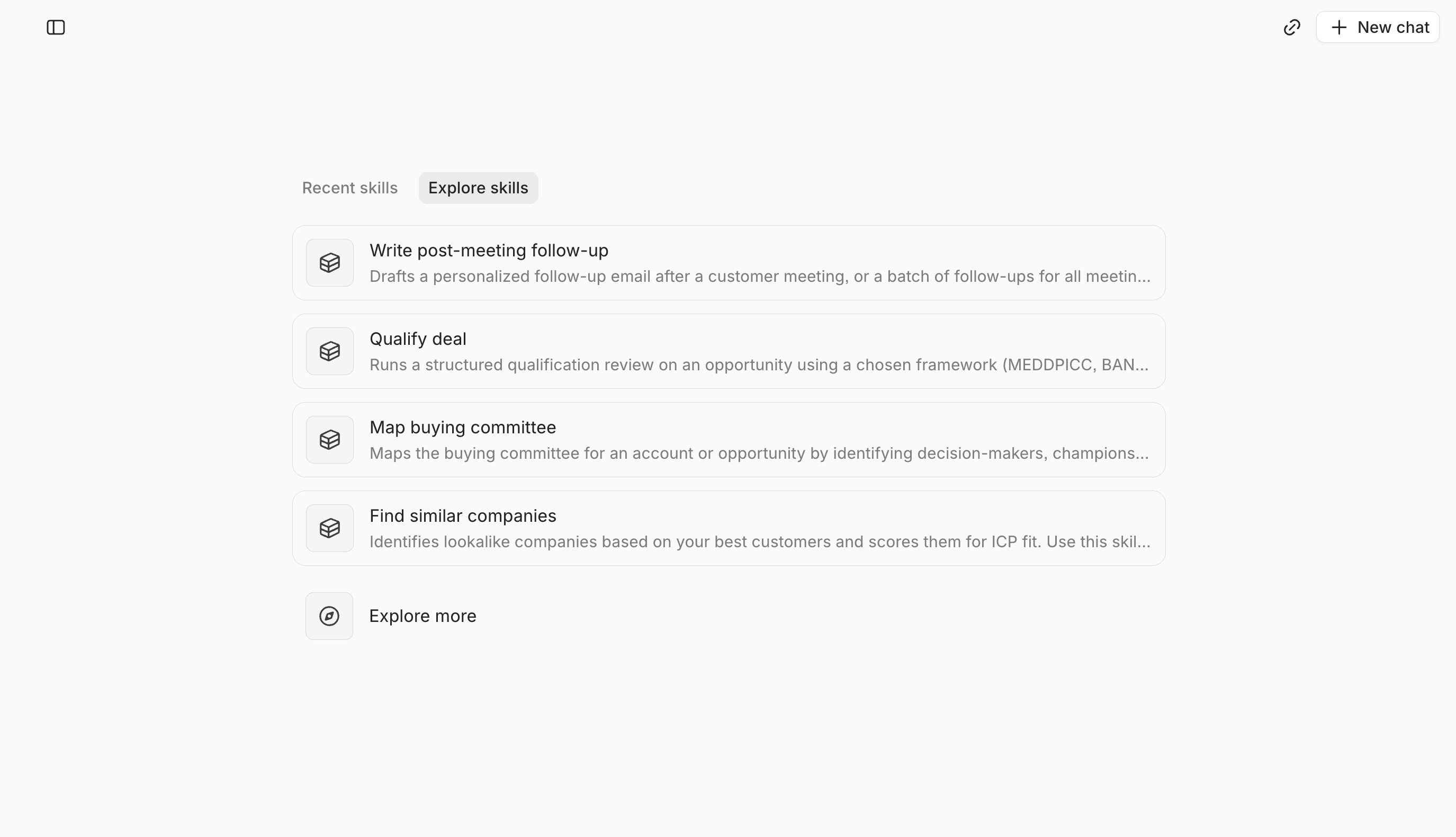
Deduplication runs when you ask. Type "Find duplicate accounts" or "Find duplicate contacts" in chat. The agent returns the matches it found with a proposed merge for each.
2. Approve each merge
Nothing merges without your approval. On approval, the notes, tasks, meetings, and emails linked to the duplicate move to the surviving record, and opportunities linked to a merged account point to the surviving account. Read each proposal before you approve it. If the agent needs a decision from you, it asks in chat.
Matches on domain or email aren't always the same business, for example when two people share an inbox, so review ambiguous ones carefully.
3. Give each field one meaning
List the fields an agent will read or write and give each one a single meaning. A status column that means three things becomes three fields that each mean one.
To create a field the agent can fill:
- Open Settings, then Data model.
- Choose the record type: Accounts, Contacts, Opportunities, or a custom object.
- Add a field with a name and a type. The type can't be changed later. To fix a wrong type, archive the field and create it again.
- Turn on AI Fill.
- Write the prompt that says what belongs in the field. For example: "What CRM and sales tools does this company currently use? Answer unknown if this hasn't come up."
- Choose Off, Suggest, or Auto, and save.
4. Ask for the backfill
A new field is empty on every existing deal and doesn't fill itself. Ask for the backfill in chat: "Fill in the new 'Current CRM' field based on past emails and meetings," or "Fill in the ICP tier field for all existing accounts based on past conversations."
A backfill reads only the history Lightfield has synced. The Backsync range setting (Settings, then Mail and Calendar) defaults to 30 days and extends to 24 months, so extend it first if older deals matter.
Some fields will stay empty. Lightfield fills public facts such as industry, headcount, and funding from the web. A field that depends on conversation, such as seat count, competitors, or current CRM, fills only when the subject came up in an email or meeting. For how call details reach the account without a rep typing them up, see how to automate CRM data entry from sales calls.
On cost, field updates from email, meeting, and Slack ingestion don't use credits. Enrichment costs 2 credits per account or contact.
5. Set how much the agent can change
Each field's AI Fill setting controls what happens from here on:
- Off: the agent leaves the field alone.
- Suggest: the agent proposes a value, and a person applies or dismisses it.
- Auto: the agent fills the field with no review.
Start on Suggest. Suggestions appear in the Suggested record updates panel on the record and in the suggestions panel on the home page, with the source email or meeting beside each one. Move a field to Auto once its suggestions have been right for a while.
Cleansing changes what's in your CRM. It doesn't send email or contact a customer.
Check what the agent changed
Every change is logged on the record. The activity log names the source of each change (a manual edit, the API, an automation, or the agent). Click an entry to see the field's value history, including the values it held before.
What changes in the CRM
Before | After |
Two accounts for one company, each holding part of the history | One account, merged with your approval |
A status column that means three things | Fields that each mean one thing |
A new field that's empty on older deals | The field filled from past calls and emails, after you asked |
Get your CRM ready for agent work
After the five steps, each company has one account you approved, each field means one thing, and new fields are filled from past calls and emails. The activity log names the source of every change the agent makes, so you can check the work afterwards.
Book a demo and we'll walk you through the five steps.
Common questions about cleaning CRM data
Does Lightfield remove duplicates automatically?
No. Deduplication runs when you ask, and every merge waits for your approval.
Can a merge be undone?
Treat a merge as final when you approve it. If one turns out to be wrong, contact Lightfield support.
Does cleaning the CRM use credits?
Field updates from email, meeting, and Slack ingestion don't use credits. Enrichment costs 2 credits per account or contact.
What CRM data should I clean first before turning on AI agents?
Start with the fields an agent will read or write (step 3), not every field. Pick the task the agent will do, such as meeting prep or follow-up drafting, and trace it to the objects and fields it touches.
Should I set AI Fill to Auto from the start?
No. Start on Suggest, where each proposed change shows its source and you apply or dismiss it. Move a field to Auto once its suggestions have been right for a while.