Handing a founder’s accounts and deal history to your first sellers
Lightfield
When a founder hands accounts to the first sales hires, the context sits in three places: the CRM, the founder’s inbox and calendar, and the founder’s memory. The handoff works when a new seller can read what happened with an account without asking the founder to retell it. This page covers what can move, what a new seller can see, and what to check before you switch systems.
Where Lightfield fits
Lightfield is an agentic CRM. It captures every customer interaction, organizes that history so agents can work from it, and gives agents the tools to do consistent, good work. Records update from your email and meetings, and temporal context shows what changed, when, and why.
That matters at a handoff because a new seller can read the account’s history in the record, without depending on what someone remembered to enter. We think a CRM built around typed-in records tends to be incomplete by the time you need it.
What carries over
Your core records and the fields we agree to migrate can move to Lightfield: companies, contacts, deals, custom field values, and relationships. Notes, attachments, and historical conversations are scoped separately, because a standard export from most CRMs doesn’t include them. Before you switch off the old system, we agree what’s included, how it appears in Lightfield, and what stays in an archive.
Here’s what to confirm for each type of data:
Data | What to confirm |
Companies and contacts | How source IDs map, and how missing, shared, or duplicate email addresses are handled |
Deals | Accounts, stages, owners, amounts, and deal-contact associations, including closed deals if they’re in scope |
Notes | Which note types you need. Standalone notes and timeline notes are different things |
Logged emails | Whether they need a separate export. Emails can’t be imported from a CSV |
Call transcripts | Which transcripts exist and match the right records. A summary isn’t a transcript |
Stage and property history | Whether it stays in an archive. We don’t promise it replays into Lightfield |
You can keep original creation dates in a dedicated field. Lightfield’s Created At shows when the record was created in Lightfield, which for an import is the import date, so use the preserved date for historical reports.
Email and meeting history
Emails can’t be imported from a CSV. You connect a Google or Microsoft mailbox instead, and Lightfield syncs its history. How far back it goes depends on:
- The backsync range you choose. It defaults to one month and can be set to 3, 6, 12, or 24 months. After you connect, you can only extend it.
- What the mailbox still holds.
- The permissions it grants.
Email stored only in your old CRM needs a separate assessment.
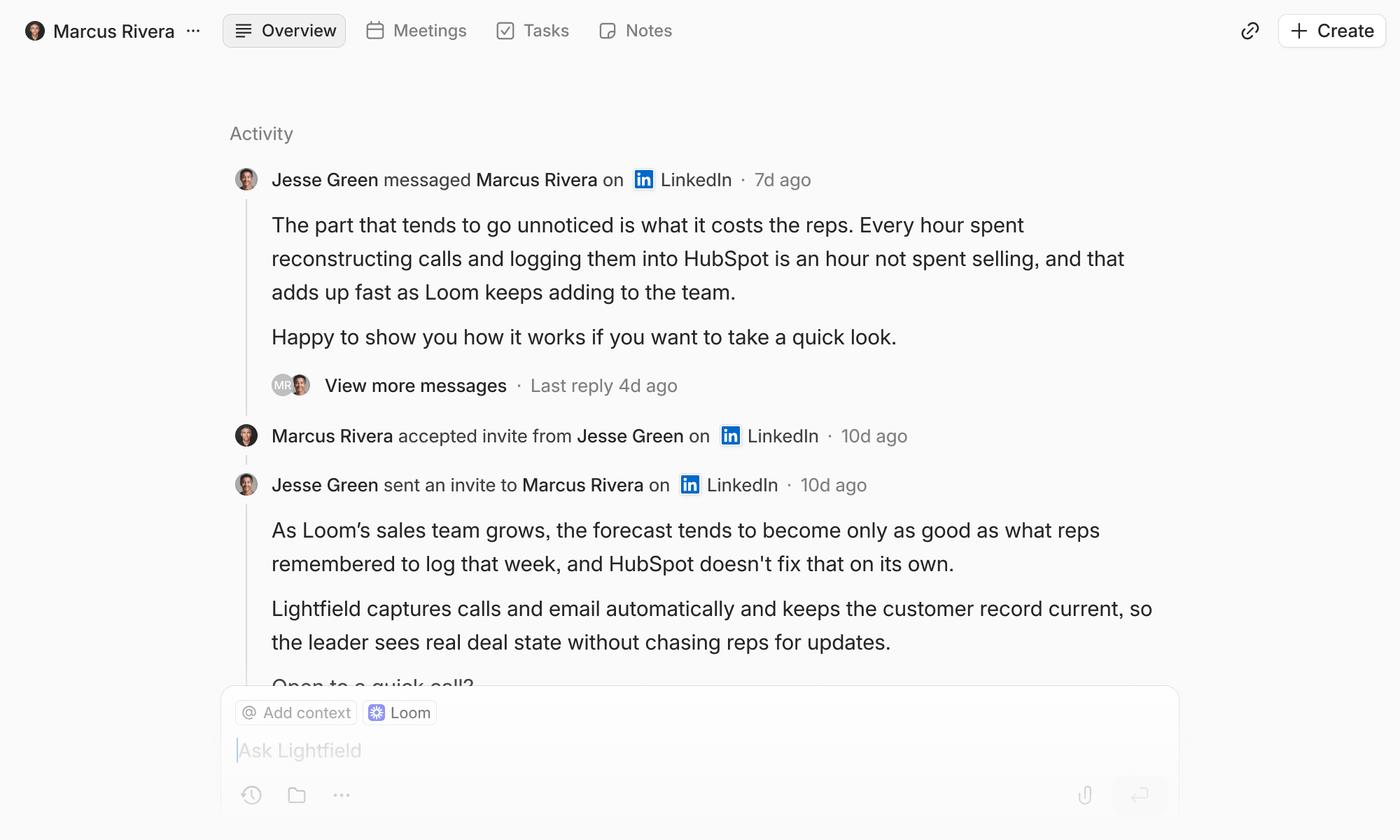
Each mailbox whose history you need has to be connected and authorized. Connecting a manager’s inbox doesn’t open anyone else’s mail. Going forward, capture seats sync email and meetings from Google or Outlook, including recording, transcription, and automatic record updates. Viewer seats give teammates read-only access to the workspace and to Chat, without syncing their own mailbox.
History syncs in the background. Connecting your inbox and calls typically backfills months of history in about an hour. Larger backfills take longer, and we confirm expected timing during setup.
What a new seller sees on day one
Access follows workspace permissions, so a new seller sees the records they’re permitted to see. Tyler Postle, Co-founder & CEO at Voker, describes the effect: “Lightfield helps me get the full context before every meeting - what happened last time, what I need to highlight, what to bring up. I walk in prepared.”
Jonathan Lakin, CEO at Intent HQ, describes reading an account’s history: “I was able to look at the account and understand exactly why we had got stuck in the process.”
Agree’s Head of Sales, Mona Darwish, moved over by exporting a CSV from her previous CRM and uploading it to Lightfield’s chat: “The migration was seamless.”
Try it yourself
We wrote this page, so run these requests on your own data:
- What happened in the last meeting with this account, and what did the customer ask for?
- Which deals has the founder worked on in the last quarter?
- Who at this account have we emailed, and when did the conversation stop?
What to check before you choose
- Which mailboxes need history, and who can authorize each one.
- Which note and activity types you need in the new system, and which can stay in an archive.
- How duplicate contacts and shared inboxes are handled.
- Which date your reports should use: the preserved source date or Created At.
Managed migration is available on request for larger or more complex setups, with scope and terms agreed during planning.
FAQ
Does Lightfield bring over every email a founder has sent? It syncs history from connected Google or Microsoft mailboxes, within the backsync range you choose and the permissions granted. Email stored only in your old CRM needs a separate assessment.
Does every new seller need to connect an inbox? Only if you want their own mailbox history and ongoing sync. Viewer seats give read-only access without that.
Can a new seller see history for a departed rep’s accounts? They can see what’s already been captured in Lightfield, within permissions. If a departed rep’s mailbox was never connected, we first check what your company still retains. We can’t promise recovery of messages that no longer exist anywhere.
How long does the history import take? Connecting your inbox and calls typically backfills months of history in about an hour. Larger backfills take longer, and we confirm timing during setup.
Does stage history from the old CRM come over? Not necessarily. We don’t promise it replays, so it may stay in an archive.
Are call recordings migrated? Transcripts can be added to meetings. We haven’t established migrating playable recordings.